

Using iWork for iPad?
Interested in taking your presentations and documents over to the new iWork for iPad apps? The new touch-driven apps present exciting opportunities for mobile presenters and authors, but there are a few things you'll want to know going in to make the transition to mobile as pain free as possible.
iWork for iPad
Using KeynotePro themes and templates with iWork for iPad
Apple announced new mobile editions of the iWork applications during the introduction of the iPad - bringing Keynote, Pages and Numbers to the iPad as touch-enabled apps and opening the iWork world to a more diversified audience than ever before. We've since had an opportunity to put the new apps through their paces and evaluate what you can expect when you're using one of our themes or templates in the most current versions of Keynote and Pages for iPad.
While the applications have been met with mixed reviews since their launch, we've found that the disparity in opinions can be closely correlated to your expectations going in - with longtime iWork users finding the most to be vocal about when trying to integrate the new apps into their workflow. In short, the iWork for iPad apps are feature-limited cousins to the desktop apps, and can't truly be thought of as replacements for all but the most casual of uses: know that going in, and you'll save yourself a lot of frustration when you're integrating the mobile editions into your toolkit.
That said, these initial versions of the iWork for iPad apps present exciting new opportunities for mobile presenters and authors, and provided you adhere to a few basic best practices along the way, they can become powerful additions to your arsenal.
Apple to Apple.
While the iWork for iPad apps share a name with the more full-featured desktop applications, they're very different animals in practice - not only in terms of general use and user-facing features, but also in terms of core theme/template architecture, theme-tier feature implementation and how it impacts building or optimizing for the device.
When you're opening Keynote or Pages for iPad for the first time, you'll notice a few familiar faces among the themes and templates available on-device: standard Apple themes like White, Gradient and Showroom anchor the list in Keynote, with a few of the more recognizable template families from Pages making their way over as well. If you want to understand the core differences between the desktop iWork applications and their respective mobile apps, looking to the differences in how these core themes and templates vary between desktop and device is key.
Apple's Best practices for creating a presentation on a Mac for use on an iPad (support.apple.com) illustrates one of the most obvious differences in Keynote via the 4th bullet group, entitled "Choose from these Master Slides." Each of the built-in themes uses a reduced eight master-slide pool, compared to the more extensive eighteen master slides present in the desktop version of Showroom, for instance. That's not to say that you can't use one of the additional ten master slides when you're building a Showroom presentation on your desktop for delivery on the iPad, but you won't be able to add a new, blank instance of one of those additional slides once the presentation is imported on the iPad: you can only duplicate those slides to create another instance for editing, so if you need more flexibility than the eight basic master slides available in the built in themes, you're going to want to think of your iPad as an end-display rather than an authoring tool and frame your presentations, and expectations, accordingly.
The differences between the templates provided in the desktop and iPad versions of Pages are, likewise, subtle but significant - and speak to the types of authoring Apple has optimized the iPad edition for. The template pool is built around short-format documents, and unlike their desktop counterparts - many of which offer additional Pages or Sections that can be inserted as required - Pages for iPad builds to a reduced single-state template that doesn't include alternate layouts, leaning toward an editable late-state template model instead of the open-ended page-as-object approach of the desktop. It's far closer, in terms of template architecture, to Word than desktop Pages in this respect - and a logical approach given the nature of touch-driven authoring. But like Keynote for iPad, if you're used to the flexibility of authoring on the desktop you may find Pages for iPad holding little appeal beyond drafting documents or making content edits.

Theme and template defaults, while present in both desktop and mobile themes, are expressed in a notably different way in iWork for iPad. Rather than having a color wheel available when inspecting the properties of objects on the stage, fill-color options are presented in a 6-item shortcut menu that displays a theme's six core colors in a step-shade arrangement, allowing for quick selection of a base color or it's percentage-based lighter/darker variations - along with gradient/texture fill options toned to match the core palette and an all-purpose greyscale palette on additional panels. If you've used PowerPoint or Word in the THMX era, you'll find this approach *very* familiar, and we're hoping it's pointing to a more comprehensive document-wide style overhaul on the horizon for iWork on the desktop rather than being an iPad-only solution.
Welcome to the Sandbox.
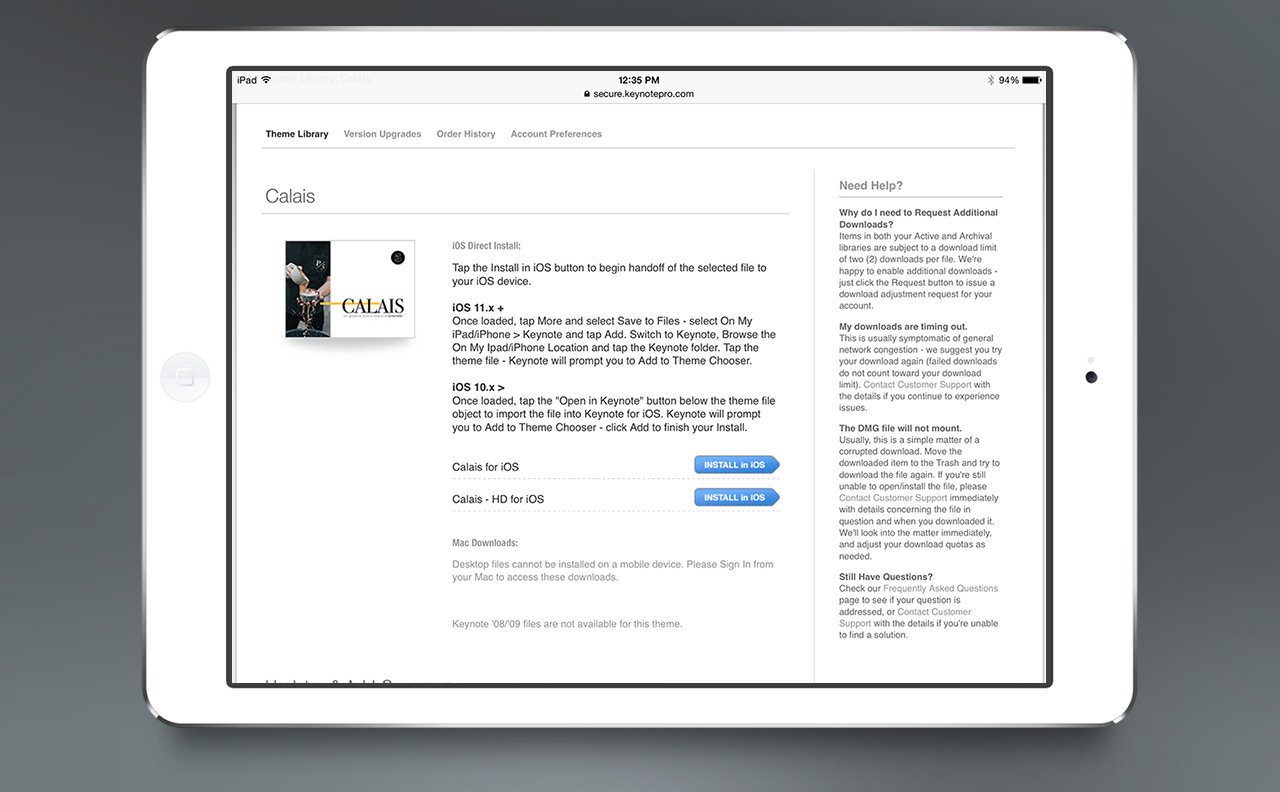
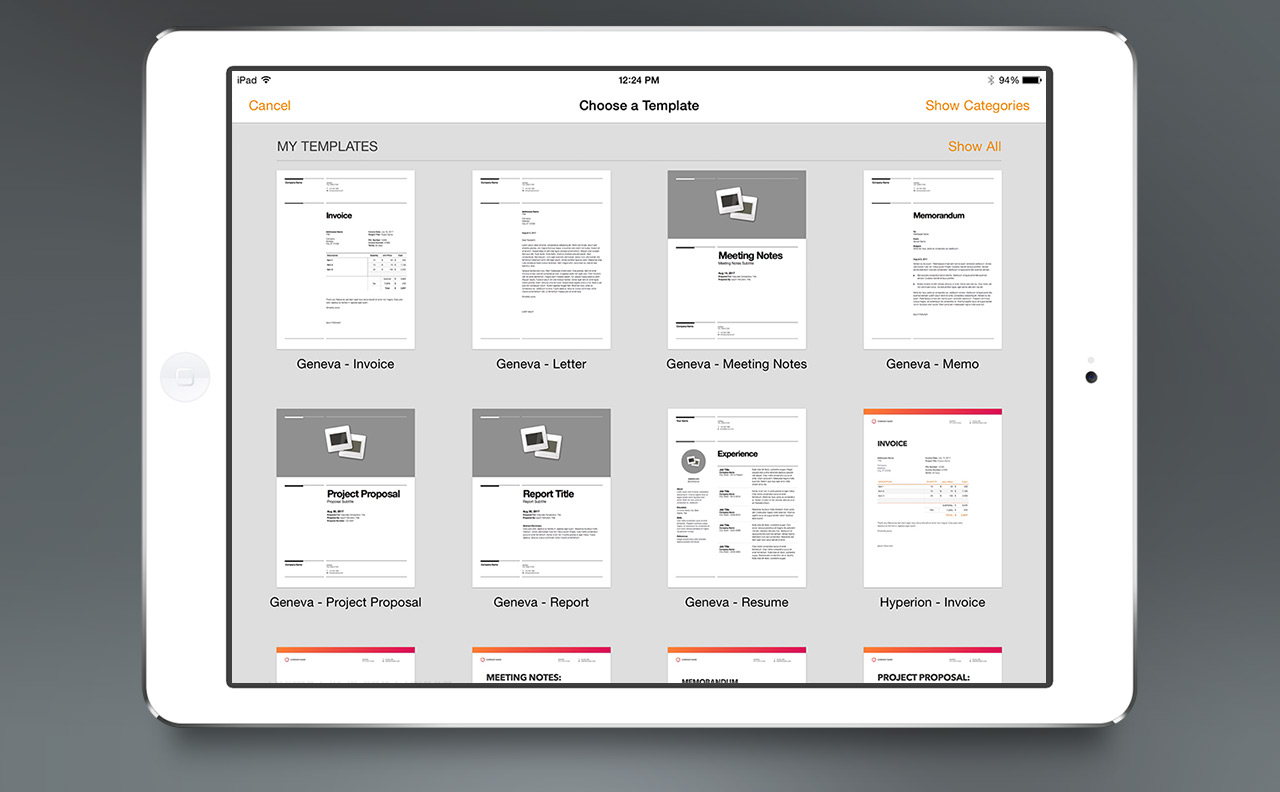
While you can import presentations and documents built with nearly any of our Keynote themes or Pages templates into iWork for iPad, you cannot install new themes or templates onto the device at this time - so if you were hoping to send your favorites from desktop iWork over to your iPad and have them appear as selections in the theme/template chooser, you're out of luck1. While there are a number of "for iPad" themes on the market, they are effectively no different than migrating any other presentation to the iPad - leaving you to duplicate a boilerplate presentation filled with boilerplate slides you'll want to duplicate, once again, if you need to use a slide more than once - making use of the word "theme" liberal in relative context. 3rd-Party themes that behave as native themes simply don't exist, and won't until Apple decides otherwise.
If the situation changes moving forward we will, of course, make as many of our themes as possible available as native Keynote for iPad themes. For now, we're going to focus on making Playback-Optimized Keynote for iPad versions of our more popular themes available in order to make the process of authoring a presentation on desktop for playback or light editing in Keynote for iPad as trouble-free as possible. The iPad-optimized builds account for elements that can't make the transition to Keynote for iPad from the desktop version - namely a particular font selection or object groups - though you'll want to continue to follow the general guidance offered by the Best Practices article and keep the objects, builds and transitions you're selecting in mind as you'll only be working with a subset of the usual capabilities once you've imported your presentation onto the iPad. We recommend giving yourself plenty of time for testing the presentation once you've transferred it to ensure that you don't run into any surprises.
The iPad Playback-Optimized updates will begin appearing on the site today - the downloads will be free of charge to registered users of each theme as they're made available.
That said, a number of our themes already make the transition to Keynote for iPad without *much* of an issue. Presentations built using the OM '08 themes, including OhM, transfer to Keynote for iPad without issue in most cases, as will presentations built using Sonoma '08. Due to the way Keynote for iPad treats objects from the master layer, however, each and every shape will be selectable on the stage - which can be more than a little annoying during editing - so be careful if you're doing anything beyond playback until the updates to these themes arrive. Presentations built using other themes, such as Tokyo RPG '08, or the Fuse* themes, will transfer to Keynote for iPad with very little change, visually speaking - you'll receive a list of errors when opening the file the first time on the iPad due to grouped objects being present on the master slides (no longer applicable for Keynote for iPad 1.1 or higher), for example, but the resultant file should play without issue. The Playback-Optimized updates will address these sorts of errors and prevent them from being displayed on import where possible (we have no way of addressing the warning with the Fuse* Kinetic themes, though the Kinetic builds play *beautifully* in Keynote for iPad, so don't let the warnings throw you), and the "flattened" builds should provide a better editing experience on the iPad.
On the Pages for iPad front, while you can't install a template to appear in the chooser, the format is naturally better suited to boilerplate authoring or editing than Keynote for iPad. If you're using a short-format template from one of our Pages Template families on a regular basis, save a new copy of the file and Import the document via iTunes - once in Pages for iPad, treat the Import folder as your 3rd-party Templates folder, effectively saving only the authored document each time: when you need to write a new Invoice, for example, go to the Import folder and import your boilerplate again to create a new version. For longer or more complex documents like brochures or newsletters, we recommend pre-authoring as much as possible in terms of your basic editorial decisions and which layouts will be used - remember that there's no inserting of new pages or sections once you're editing on the iPad. Depending on the source template used, you may encounter Document Import Warnings, particularly if you've left date or time fields set to their defaults - you can safely ignore these warnings in most cases.
Moving Forward
The appearance of iWork for iPad opens up interesting new possibilities moving forward, perhaps most notably in what it adds to the landscape of Mobile presentations. If you've been using one of our iPod or iPhone-optimized EP Edition themes for mobile presentations, iWork for iPad is a fantastic extension of that approach, providing the control over timing and transitions that have traditionally been the crux of the tradeoff between exporting to Quicktime or iPhoto for transfer to the device in question. With Keynote for iPad, no such tradeoff has to be made, though given the limited feature set you're still going to want to use a more restrained hand when preparing your show for iPad than you would for desktop Keynote. If you build to the strengths of the device and app as a showtime duo, treating it as something more akin to a Keynote Player than desktop Keynote, the utility is pretty self-evident, and quite welcome in the mobile presentation space.
Is this the end for iPod and iPhone-optimized EP themes? Not quite yet. But it's a clear signal that their days are numbered.
Compatibility Testing.
The following KeynotePro themes have been tested for playback in Keynote for iPad and determined to be Shelf-Playable or Update-Playable. Shelf-Playable themes will transfer to the iPad for playback without an iPad-specific update required - we do, however, recommend applying the updates to these themes as they're available if you're planning on editing or modifying your presentation once it's on the iPad. Update-Playable themes will require updates for both usability and compatibility, and are *not recommended* for transfer to the iPad until an updated iPad Export theme is available.
As additional themes are addressed they'll be added to this list.
| Theme Family | Shelf-Playable | Update-Playable |
|---|---|---|
| Aurora | ||
| Canto | ||
| Copenhagen | ||
| Fuse* | ||
| MagnetBoard (update posted Sept 1, 2010) | ||
| Oak Park | ||
| OM '08 | ||
| Palo Alto '08 | ||
| Pavilion '08 | ||
| PitchBoards '08 (update posted Sept 1, 2010) | ||
| Platform '09 | ||
| Sonoma '08 (update posted October 15, 2010) | ||
| Tokyo RPG '08 | ||
| Warp Series: Elevation '09 (update posted December 30, 2010) |
* Fuse*/Canto Static themes are Shelf Playable. Fuse*/Canto Kinetic Themes will always report errors upon first import due to master-level builds - they playback without issue once the import warnings have been displayed.
Additonal Resources.
- Best practices for creating a presentation on a Mac for use on an iPad (Apple)
- Keynote for iPad: Frequently Asked Questions (Apple)
- Pages for iPad: Frequently Asked Questions (Apple)
1. We're betting this is unlikely to change, and that Apple has made a strategic decision to limit the overall utility available to iWork for iPad when there isn't a Mac in the equation.